25 Best Collaborative Video Editing Tools For Teams To Work Faster Together
Top Software For Seamless Collaborative Video Production
I’ve lost count of how many times I’ve saved a video as “final_final_v3.mp4.”If you’ve worked on videos with a team, you know the struggle: endless versions, scattered feedback, and files getting lost in chats or email threads. That’s why I started using collaborative video editing tools to keep everything organized and my team in sync.
Now, even though my teammates are spread across the world, we can edit, comment, and review videos together in real time. One shared platform keeps our workflow smooth, reduces confusion, and saves hours of back-and-forth. After testing many options, I’ve narrowed it down to 25 best collaborative video editing toolsthat help creative teams work faster, stay connected, and focus on making great videos instead of managing chaos.
1. Frame.io
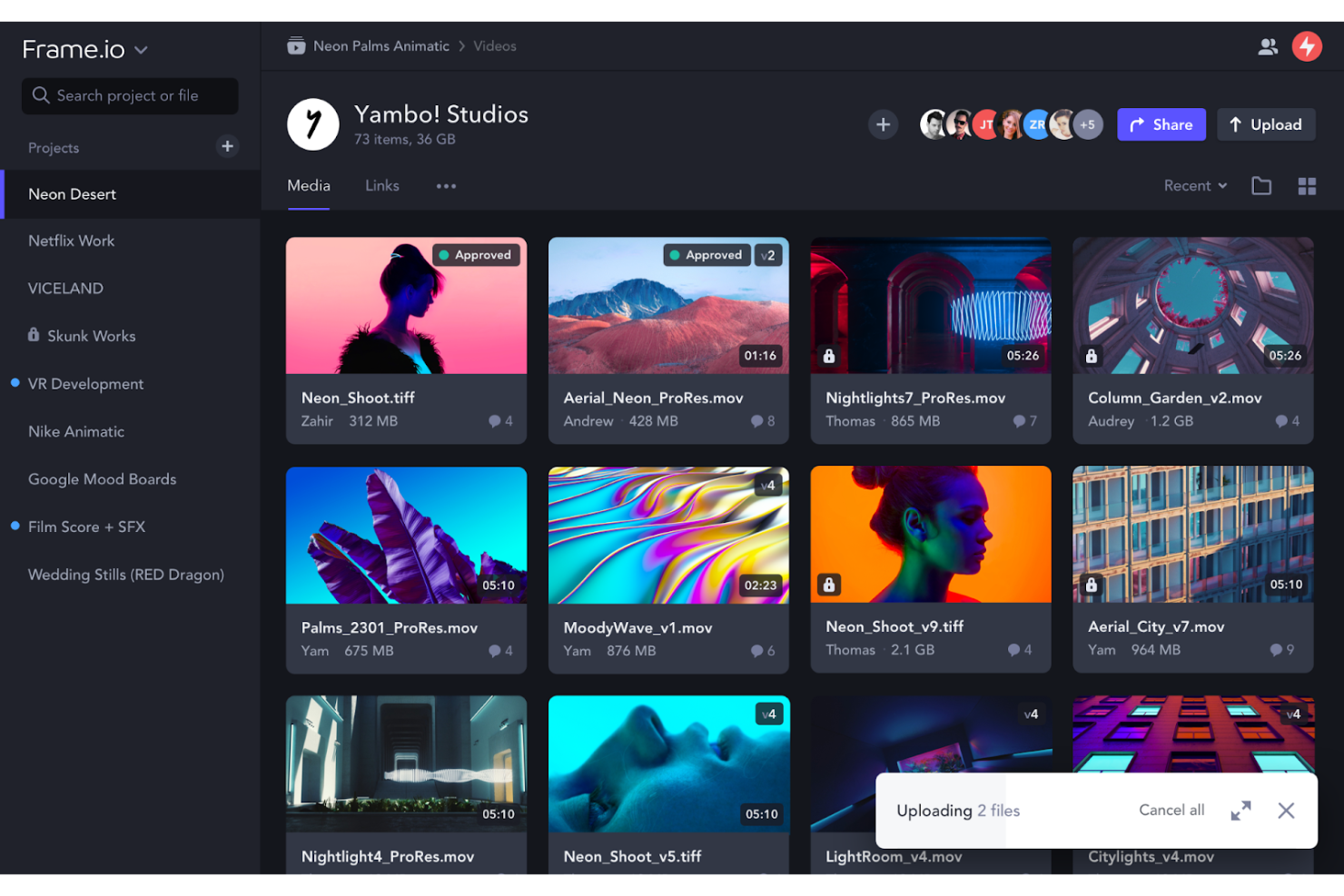
Frame.io remains the top choice for professional video teams. It allows editors, producers, and clients to review footage in real time, frame by frame. You can leave time-coded comments, share secure review links, and even upload directly from Adobe Premiere Pro or Final Cut Pro.
Its Camera-to-Cloud (C2C) feature lets footage upload instantly from set to post-production, saving huge amounts of time. Many production houses and agencies use Frame.io because it reduces email chains and keeps everyone aligned during editing. It’s also a handy platform for organizing visual data and presentations in a research project, especially when multiple people need to review and annotate video materials remotely.
Pros:
- Frame-accurate feedback and annotation
- Integrates deeply with Adobe Creative Cloud
- Secure sharing with watermarking and permissions
- Excellent version control and file organization
Cons:
- Expensive for small teams
- Requires a strong internet connection for smooth uploads
2. Vimeo
Vimeo isn’t just a video hosting platform anymore, it’s also a reliable collaboration hub. It allows creative teams to upload drafts, share private review links, and collect timestamped feedback from clients.
Its editing and marketing tools make it especially useful for brands and agencies that create promotional content. You can collaborate with teammates, analyze performance, and publish directly to websites or social channels. Vimeo’s secure environment also ensures your work stays private until you’re ready to release it.
Pros:
- Secure, professional video hosting
- Built-in review and feedback features
- Great marketing and analytics tools
- Supports high-quality playback and embedding
Cons:
- Limited editing features compared to dedicated editors
- More expensive than basic hosting options
3. Adobe Premiere Pro
Adobe Premiere Pro is an industry standard for a reason. It offers powerful editing tools, real-time collaboration via Frame.io integration, and advanced AI features like automatic captioning, scene detection, and color matching.
The same combination of AI and video technology is moving into real-time broadcasting as well, with AI-powered live streaming in Londonhighlighting how automation could influence the next generation of video experiences.
Teams can edit the same project simultaneously using Adobe’s Team Projects system. Editors love its flexibility; it supports almost any format and integrates with Photoshop, After Effects, and Audition. For serious video professionals, it’s one of the most complete editing ecosystems available.
Pros:
- Professional-grade features for all editing stages
- Seamless integration with Adobe apps and Frame.io
- AI tools speed up repetitive editing tasks
- Suitable for high-end productions and agencies
Cons:
- Steep learning curve for beginners
- Subscription cost can add up over time
4. Descript
Descript changes the editing process by letting you edit videos like a text document. Simply edit the transcript, and the video updates automatically. It’s great for podcasts, tutorials, and explainer videos.
For those creating video ideas for a gaming channel, Descript makes it easy to cut clips, sync voiceovers, and polish content fast, no complex tools needed. You can collaborate in real time, leave comments, and use AI tools like Overdub to clone voices or fix audio errors.
Pros:
- Text-based editing saves time
- Great for podcasts and educational content
- Real-time collaboration and commenting
- Built-in AI tools for audio clean-up and overdubbing
Cons:
- Limited advanced visual editing features
- Requires strong internet for cloud sync
5. Ziflow
Ziflow is a favorite among large creative teams. It streamlines the feedback and approval process by automating file routing, version management, and reviewer notifications.
You can compare revisions side-by-side, track approval stages, and connect Ziflow with other tools like Slack, Asana, or Adobe Creative Cloud. For agencies managing multiple clients, it saves time and reduces confusion by centralizing all feedback in one clean dashboard.
Pros:
- Automates approvals and version tracking
- Integrates with major creative platforms
- Excellent for large, complex teams
- Clear and detailed activity tracking
Cons:
- Interface can be overwhelming for new users
- Pricier than simpler review tools
6. Wipster
Wipster focuses on visual feedback simplicity. Team members and clients can comment directly on any frame, draw annotations, and approve edits within the platform.
It’s easy to use and integrates with tools like Vimeo, Dropbox, and Adobe Premiere Pro. Wipster also provides activity tracking and version control to ensure that everyone is working on the latest draft. For small to mid-sized teams, it offers an intuitive and visually pleasing collaboration experience.
Pros:
- Extremely user-friendly
- Supports direct frame annotations
- Integrates with top editing platforms
- Great dashboard for tracking progress
Cons:
- Limited automation compared to Ziflow
- Can be slow with very large files
7. Filestage
Filestage helps teams manage the entire content review process, not just for video but also for designs, PDFs, and other creative files. Reviewers can comment and approve files in one place, making collaboration smooth and transparent.
It’s especially valuable for agencies working in regulated industries, as it provides audit trails and compliance features. Filestage ensures that all feedback is organized and the version history is always accessible.
Pros:
- Works with videos, images, and documents
- Built for feedback accuracy and compliance
- Clean interface with excellent organization tools
- Great for remote teams and clients
Cons:
- Limited editing functionality
- Higher-tier features require premium plans
8. Evercast
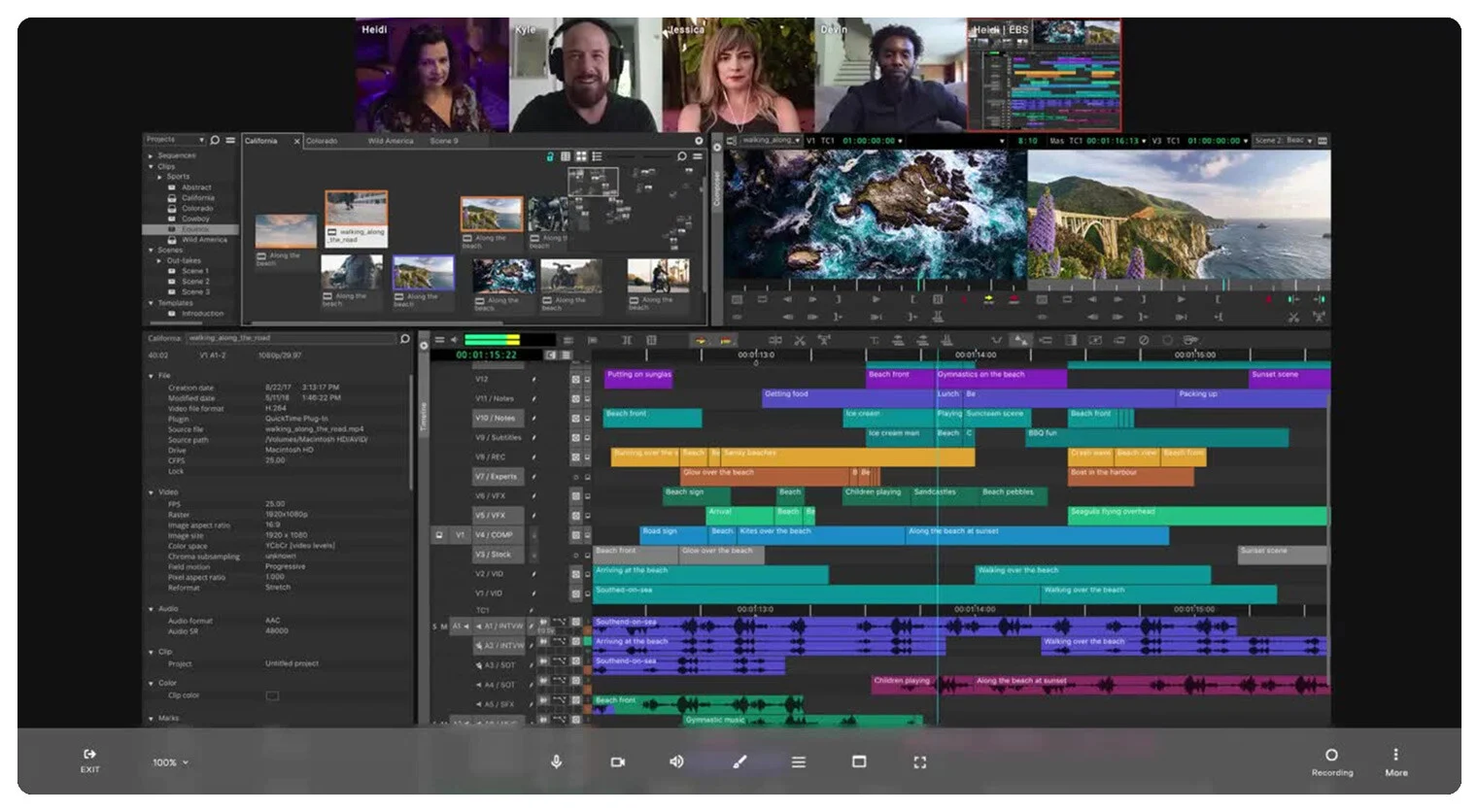
Evercast combines video conferencing with live editing sessions. Editors, directors, and clients can watch, comment, and collaborate in real time as footage plays.
It’s widely used in film and post-production because it simulates an in-studio experience remotely. Security is enterprise-level, making it ideal for studios that manage confidential projects. For real-time teamwork, it’s one of the most advanced tools on the market.
Pros:
- Real-time editing collaboration
- Studio-grade video streaming quality
- Strong encryption and security controls
- Perfect for remote post-production teams
Cons:
- Expensive for small teams
- Requires strong bandwidth
9. Flixier
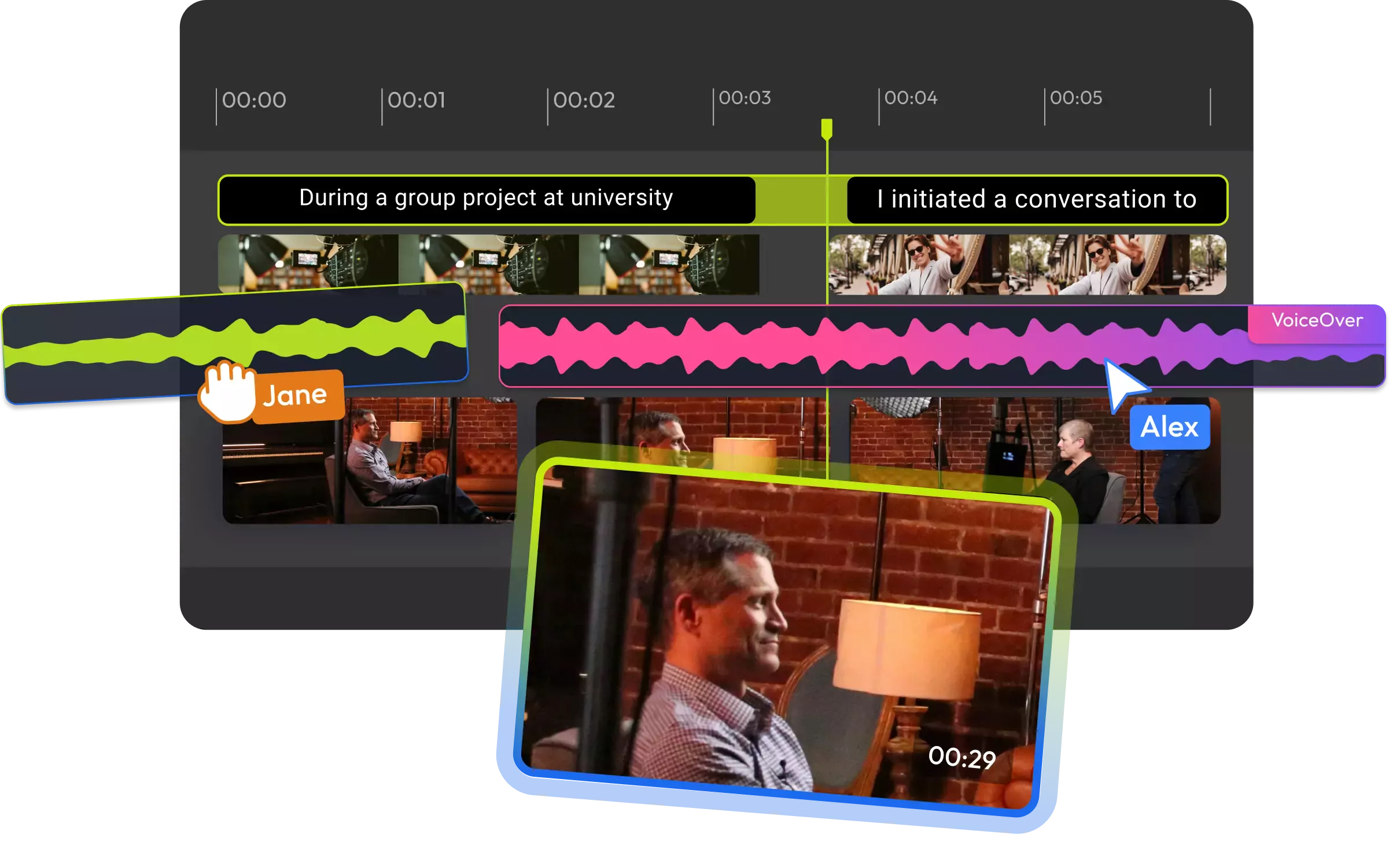
Flixier runs entirely in the browser, meaning you don’t need to download software. It processes video edits at lightning speed and allows teams to collaborate instantly online.
You can add comments, share preview links, and publish directly to YouTube or social platforms. Its interface is simple enough for beginners yet powerful enough for professionals who want to work faster without heavy hardware.
Pros:
- Cloud-based and fast rendering
- Supports instant collaboration and feedback
- Great for marketing and social media videos
- Runs on almost any computer
Cons:
- Limited advanced color grading and motion effects
- Needs internet to function
10. Dropbox Replay
Dropbox Replay transforms your Dropbox into a creative collaboration space. You can upload, comment, and review videos all in one place, no extra apps required.
Each comment is tied to a specific moment in the video, helping editors and clients stay clear about what needs fixing. Replay keeps everything organized and integrates directly with Premiere Pro and After Effects, making it perfect for teams already using Dropbox.
Pros:
- Simple, clean, and fast feedback system
- Perfect for Dropbox users
- Supports timestamped comments
- Integrates with Adobe tools
Cons:
- No direct editing tools
- Works best only within Dropbox ecosystem
11. MediaSilo
MediaSilo is designed for film studios, broadcasters, and media houses that need top-level security. It supports encrypted sharing, digital watermarking, and strict access controls.
Beyond safety, MediaSilo also includes tools for team feedback, review links, and version management. It’s ideal for managing large media libraries where control and traceability are key.
Pros:
- Military-grade security features
- Ideal for large-scale video production
- Version management and review tools included
- Integrates with professional editing suites
Cons:
- Complex setup for small teams
- Higher cost compared to simple review tools
12. StreamWork
StreamWork unifies the review and approval process into one clean workspace. It allows teams to collaborate across time zones and departments efficiently.
Users can upload drafts, add annotations, and manage feedback without leaving the dashboard. StreamWork’s automation and integration features help speed up approvals and eliminate confusion in fast-moving projects.
Pros:
- Clear, organized feedback workflow
- Great for distributed teams
- Supports multiple file types
- Integrates with production tools
Cons:
- Lacks advanced AI or automation
- The interface could be more modern
13. Ftrack
ftrack is a project management and review platform made for video professionals and studios. It allows multiple team members to manage tasks, track progress, and collaborate on creative reviews.
Its video review feature provides time-coded feedback and real-time updates, while integrations with Nuke, Maya, and After Effects make it ideal for animation and post-production teams.
Pros:
- Great project management and collaboration features
- Ideal for VFX and animation teams
- Supports time-coded reviews
- Strong software integrations
Cons:
- Complex for casual users
- Pricier than basic collaboration tools
14. Iconik
Iconik helps creative teams store, manage, and collaborate on media from anywhere. It combines video asset management with review tools and allows permission-based sharing for secure collaboration.
It’s great for organizations managing huge video archives, giving editors and marketers quick access to files in the cloud. Iconik’s AI search also makes finding clips much faster.
Pros:
- Cloud-based media management
- Great security and permission control
- AI-powered search tools
- Scalable for big media libraries
Cons:
- Requires setup and onboarding
- Can be costly for large teams
15. Movavi Video Editor
Movavi Video Editor is designed for beginners who want an easy way to create and edit videos. It has drag-and-drop tools, filters, transitions, and titles, all within a clean, beginner-friendly interface.
While it doesn’t have advanced team collaboration features, it’s great for small teams, teachers, or marketers who want to create quick videos without complex software.
Pros:
- Simple and easy to use
- Affordable pricing
- Good for basic editing and learning
- Fast export options
Cons:
- Limited collaboration tools
- Not suited for professional studios
16. Pro Media Tools
Pro Media Tools is a professional-grade suite of utilities made for editors who handle large video projects daily. It includes tools for file organization, metadata editing, timeline management, and delivery tracking.
It’s not a single editing program but a bundle of workflow toolsthat make life easier for video editors working with Final Cut Pro, Avid, or Premiere Pro. For studios or freelancers managing multiple projects, Pro Media Tools helps reduce technical errors and speed up repetitive post-production tasks.
Pros:
- Excellent for organizing and managing large media projects
- Compatible with most professional NLEs
- Saves time by automating repetitive post-production work
- Offers precise metadata and file management tools
Cons:
- Steeper learning curve for beginners
- Interface feels outdated compared to cloud tools
17. Autodesk Flow Capture
Autodesk Flow Capture (formerly known as Moxion) is a high-end solution designed for film and television production. It allows studios to upload, share, and review “digital dailies” securely in the cloud.
This means directors, editors, and producers can view footage the same day it’s shot, no matter where they are. With built-in watermarking, frame-accurate playback, and secure delivery, Flow Capture helps major studios collaborate safely and efficiently from set to post.
Pros:
- Industry-standard security and watermarking
- Real-time dailies and cloud review
- Integrates with professional production pipelines
- Used by major studios worldwide
Cons:
- High cost and complexity for small teams
- Requires good bandwidth and IT setup
18. Blackmagic DaVinci Resolve
DaVinci Resolve is a favorite among editors, colorists, and sound designers. It combines editing, color correction, audio mixing, and visual effects into one program, no switching between apps.
The free version is already powerful, while the Studio edition adds collaboration tools for multi-user editing. Its built-in cloud workflows make it easy for teams to share timelines and updates in real time. DaVinci Resolve’s professional color grading tools make it a top pick for filmmakers and post-production studios.
Pros:
- Complete all-in-one post-production solution
- World-class color grading and visual effects
- Cloud collaboration and timeline sharing
- Free version offers strong features
Cons:
- Requires a powerful computer for smooth performance
- Learning curve for new editors
19. WeVideo
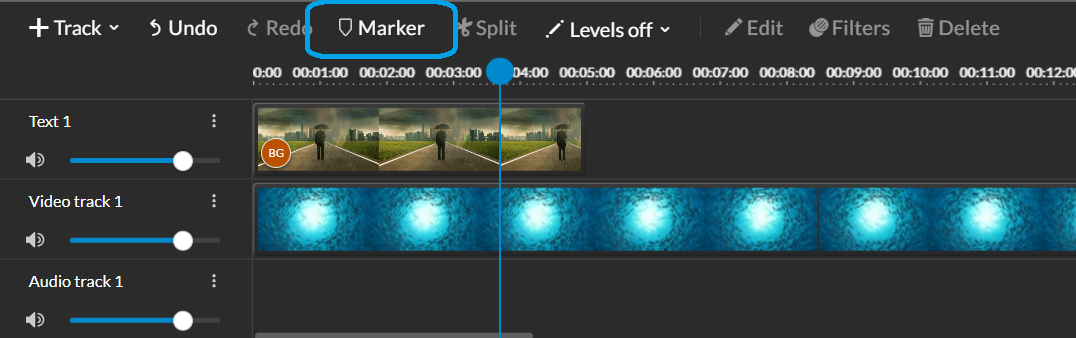
WeVideo is a cloud-based editing tool made for educators, marketers, and social content creators. It’s simple enough for students yet flexible enough for professional use.
Teams can collaborate in real time, leave comments, and share feedback directly in the cloud. It also offers a library of stock footage, transitions, and music, making it perfect for classrooms, marketing departments, or small creative agencies looking for an easy collaborative tool.
Pros:
- Cloud-based and beginner-friendly
- Great for education and marketing projects
- Built-in stock media library
- Real-time collaboration features
Cons:
- Limited advanced editing tools
- Requires stable internet connection
20. ReviewStudio
ReviewStudio is a straightforward online proofing tool made for creative teams. You upload video cuts, images, or web pages and invite team members or clients to review them. Reviewers can leave time-coded comments, draw or highlight areas on the frame, and approve or request changes. This keeps feedback visual and precise, so editors know exactly what to fix.
What stands out with ReviewStudio is how easy it is for non-technical reviewers to use. Clients don’t need to learn complex software, they simply open a link, watch the video, and drop comments at the exact moment they see an issue. For small to mid-sized teams and agencies who want quick, clear feedback without a steep learning curve, ReviewStudio offers a clean, no-nonsense workflow that speeds approvals and cuts down email chains.
Pros:
- Very easy for clients and non-editors to use.
- Time-coded comments and drawing tools for precise feedback.
- Simple approval and revision tracking.
- Good for fast review cycles and short projects.
Cons:
- Not as feature-rich as enterprise review platforms (fewer automations).
- Limited direct integrations with major NLEs compared to Frame.io or Ziflow.
- May lack advanced security features required by large studios.
21. Trello
Trello is one of the easiest tools for organizing your video production and post-production workflow. It uses a simple board-and-card layout, where each card represents a task, such as scripting, editing, sound design, or final review. You can move these cards between stages like “In Progress,” “Review,” and “Completed,” making it easy to see where every project stands.
Team members can leave comments, attach files, set deadlines, and tag each other, which keeps communication smooth and focused. Trello also integrates with tools like Google Drive, Slack, Frame.io, and Dropbox, making it a great hub for managing creative projects. It’s perfect for small to mid-sized video teams that want a clear, visual way to stay organized from start to finish.
Pros:
- Simple drag-and-drop workflow management
- Great for planning and tracking production stages
- Works well with other creative tools like Google Drive or Frame.io
- Free plan available with plenty of useful features
Cons:
- Not built for video editing itself
- Can become messy with very large projects
- Limited automation compared to tools like ClickUp
22. LucidLink
LucidLink makes working with large video files in the cloud easy and fast. Instead of downloading huge clips, it streams them directly from the cloud, letting editors start instantly. This real-time access saves hours and helps remote teams collaborate as if they were in the same studio.
You can mount LucidLink as a virtual drive, giving your team shared access to all files at once. It integrates seamlessly with tools like Adobe Premiere Pro, Avid Media Composer, and DaVinci Resolve, perfect for production houses handling high-res footage. It also works well alongside presentation apps, especially when teams need quick, reliable access to shared media for visuals or client previews.
Pros:
- Real-time access to cloud-stored media
- Ideal for remote or hybrid video teams
- Secure file sharing with strong encryption
- Integrates with top editing programs
Cons:
- Requires fast and stable internet connection
- More expensive than basic cloud storage tools
- Setup may be tricky for beginners
23. Kapwing
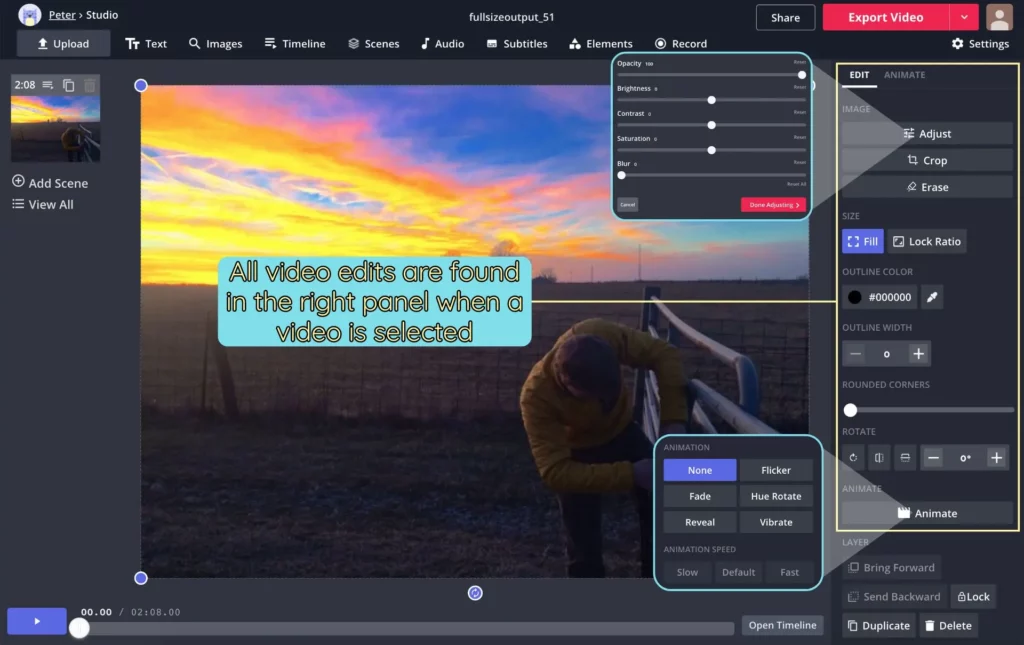
Kapwing is a lightweight, browser-based video editor that lets teams create and edit videos together in real time. You don’t need to install anything, just upload your clips, make edits, and share the link. It’s great for marketing teams, educators, and small creators who want to produce content fast without learning complex software.
Kapwing’s AI tools make editing even easier. You can automatically generate subtitles, remove backgrounds, or resize videos for social media. Multiple users can edit or comment at the same time, keeping collaboration quick and efficient. It’s one of the best options for creating short-form content like ads, explainers, and reels.
Pros:
- 100% browser-based, no downloads needed
- Real-time collaboration on projects
- AI features for captions, trimming, and resizing
- Beginner-friendly and affordable
Cons:
- Limited export formats and quality options
- Internet-dependent performance
- Not ideal for complex, professional video editing
24. ClickUp Clips

ClickUp Clips is a simple but powerful feature inside the ClickUp project management platform. It lets users record short videos or screen captures to give visual feedback or show project updates. Instead of writing long messages, you can record a quick clip explaining an edit or reviewing a timeline, and share it instantly with your team.
This tool is a huge time-saver for remote creative teams. You can attach your clips directly to tasks, comments, or chat threads. It’s not a full editing program, but it’s perfect for improving communication and reducing misunderstandings during post-production.
Pros:
- Great for visual explanations and quick reviews
- Saves time on long written feedback
- Built into ClickUp’s project management system
- Perfect for remote creative teams
Cons:
- Limited video length and editing features
- Works best only within ClickUp
- Not a standalone video collaboration tool
25. DaVinci Resolve
DaVinci Resolve is one of the most complete and professional post-production platforms available today. It combines video editing, color correction, sound design, and visual effects in one program, which means you don’t have to switch between multiple tools.
For collaboration, Resolve allows several people to work on the same project at the same time, editors, colorists, and sound engineers can share timelines and assets through its cloud system. The free version already includes advanced features, making it a favorite among both indie creators and film professionals.
Pros:
- All-in-one post-production solution
- Multi-user cloud collaboration
- Industry-level color correction and sound tools
- Free version offers pro-level features
Cons:
- Steep learning curve for new users
- Requires a powerful computer
- Cloud setup needs configuration and storage planning
Core Features To Look For In Collaborative Video Editing Tools
Choosing the right platform means understanding what features will genuinely help your team. Here are the essentials to consider:
1. Real-time Or Multi-user Editing
Some tools allow real-time editing, meaning multiple people can work on the same timeline simultaneously (like Google Docs, but for video). Others rely on sequential editing, one editor uploads changes at a time. Real-time editing is ideal for small, fast-moving teams, while sequential setups may fit studios where version control is critical.
2. Asset Sharing And Version Control
Every project involves countless clips, audio files, and graphics. Good collaborative platforms let you store these assets in the cloud, track versions, and roll back changes if needed. Look for automatic version naming and integrated backup systems, they prevent confusion and data loss.
3. Feedback And Comments
A truly collaborative system lets team members comment directly on the video timeline or even specific frames. Time-coded notes help avoid vague messages like “the music at the end feels off.” You can instantly see what needs changing and who suggested it.
4. Integration With Creative Suites And Project Tools
If your team already uses Adobe Premiere Pro, Final Cut Pro, or DaVinci Resolve, check for compatibility. Many tools integrate directly, allowing easy file sync and project sharing. Integration with tools like Slack, Asana, or Trello can also help keep everyone aligned.
5. Security And Access Control
Video assets are valuable intellectual property. Choose tools that provide secure cloud storage, encrypted sharing links, and detailed permission controls. For agencies handling client work, compliance features (like GDPR or enterprise security standards) can be non-negotiable.
6. Cost And Scalability
Not every team needs an enterprise-grade platform. Smaller teams can start with free or affordable options that still offer powerful collaboration. What matters most is scalability, the ability to add users and features as your projects grow.
People Also Ask
What Is A Collaborative Video Editing Tool?
It’s software that lets multiple people work on the same video project, either in real time or through cloud-based sharing and review systems.
Can Multiple Editors Work On The Same Video Simultaneously?
Yes, some tools (like Flixier or Descript) support real-time co-editing. Others (like Frame.io) focus on reviewing and commenting while editors make changes locally.
Are Cloud-based Video Editing Tools Secure?
Top-tier platforms use encryption, secure access links, and permission controls. Always choose a trusted provider with transparent data policies.
What’s The Best Option For Freelancers?
Frame.io or Dropbox Replay are great for freelancers who want to collect client feedback efficiently without paying enterprise rates.
How Do I Manage Large Video Files Remotely?
Use proxy editing or compressed preview versions for collaboration, then render the final version locally. Some platforms automatically optimize playback.
Final Thoughts
After years of juggling endless edits and “final” files, I’ve realized that the right collaboration tool changes everything. It makes teamwork smoother, keeps everyone on the same page, and turns the editing process from stressful to seamless.
No matter your team size or project type, there’s a tool that fits your workflow. Once you find the right one, you’ll wonder how you ever managed without it.